Bulk upload bundles
Create many bundle SKUs at once from a spreadsheet and review past uploads.
Help ArticleUpdated June 12, 20261 min read
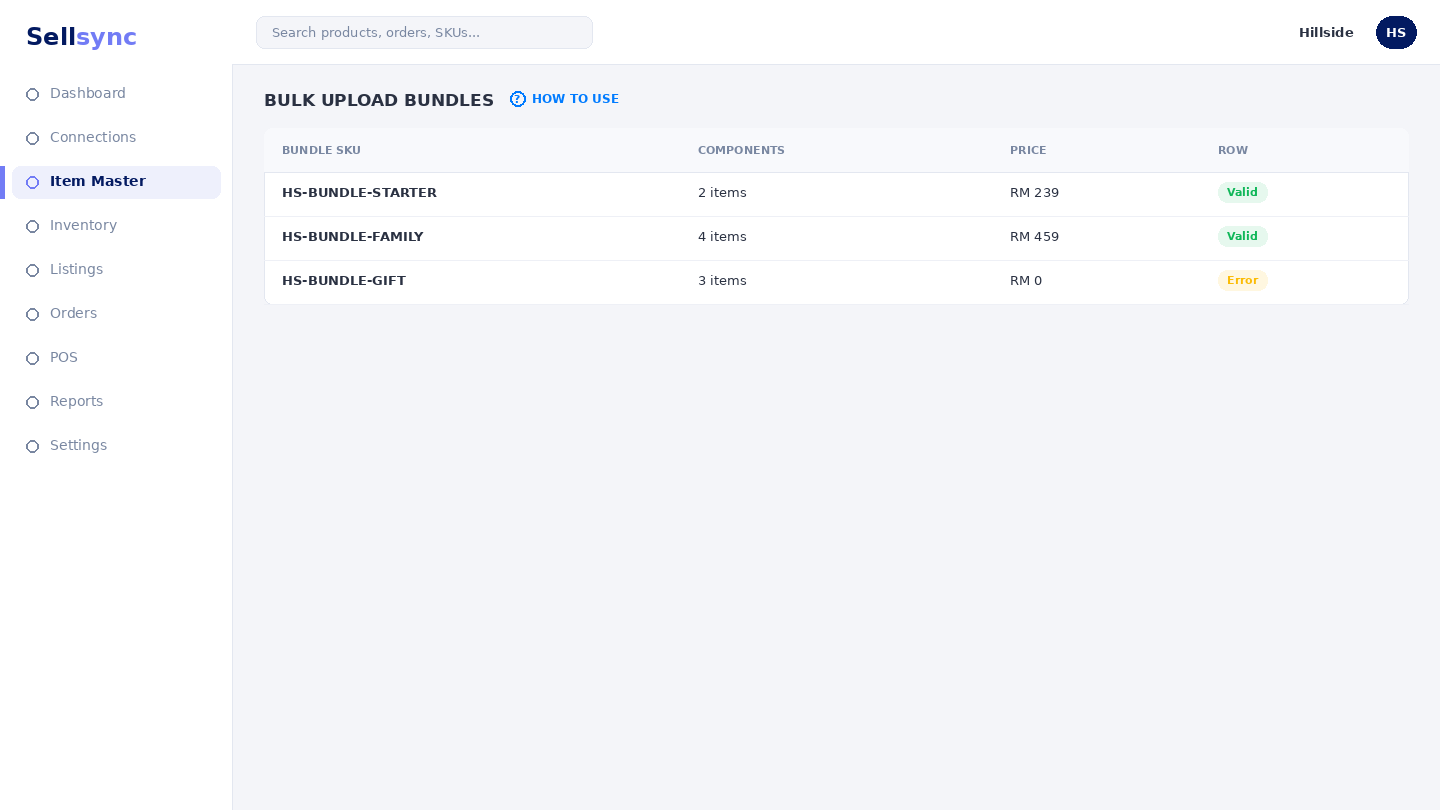
If you sell a lot of kits, building each bundle by hand is slow. Bulk upload lets you define many bundles in one file, and keeps a record of every upload you have run.
Steps
- 1Open the bundle uploads screen under Create/Update Items.
- 2Download the bundle template and fill in one row per component line.
- 3Use a consistent bundle code so all of a bundle's parts group together.
- 4Upload the file and review what Sellsync detected.
- 5Confirm the import, then check the SKU appears with the right components.
Tips
Start with one or two bundles to learn the layout before uploading the full set. You can revisit this screen any time to see previous uploads.
Tip
Make sure every component SKU already exists before you upload — bundles can't reference SKUs that aren't there yet.
Was this article helpful?