Manage your orders
Work through every channel's orders from one queue with filters and search.
Help ArticleUpdated June 20, 20261 min read
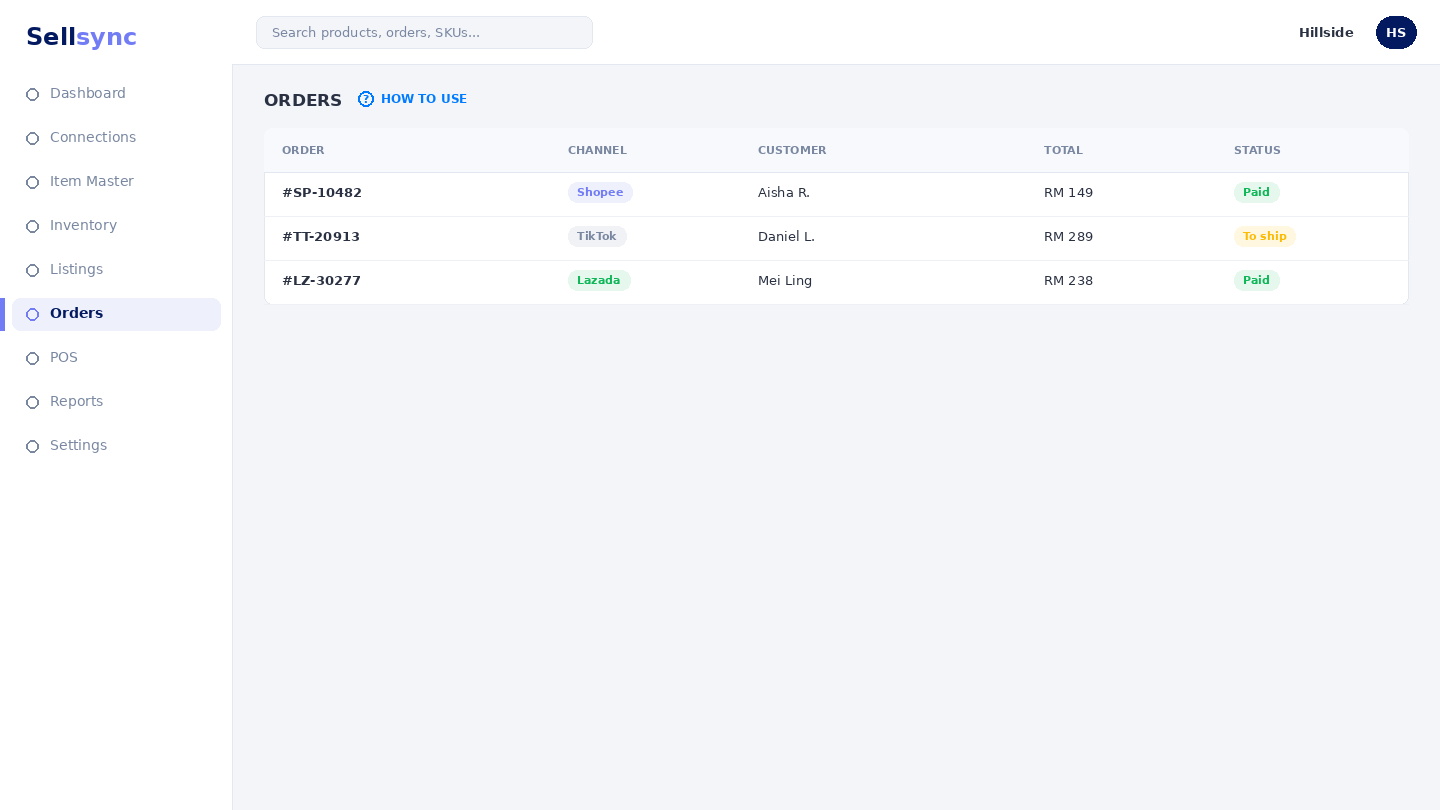
The Orders list gathers orders from every connected channel into one place. Filters and search help you focus on exactly the orders you need to act on.
Steps
- 1Open Orders to see the combined queue.
- 2Use Show Filters to narrow by shop, status, or date.
- 3Open an order to see its items and customer details.
- 4Move ready orders into processing to pick and pack them.
- 5Keep an eye on statuses so nothing is missed.
Good to know
Orders only appear once a channel is connected and syncing. The list stays empty until your first live orders arrive.
Tip
Filter by status to focus the queue — start with everything that's ready to pack, then move to process and ship.
Was this article helpful?