Match imported listings
Link the listings pulled from your channels to the right master SKUs.
Help ArticleUpdated June 16, 20261 min read
When you connect a channel, its existing listings are imported. Until each one is matched to a master SKU, Sellsync cannot sync its stock. This screen is where you make those links.
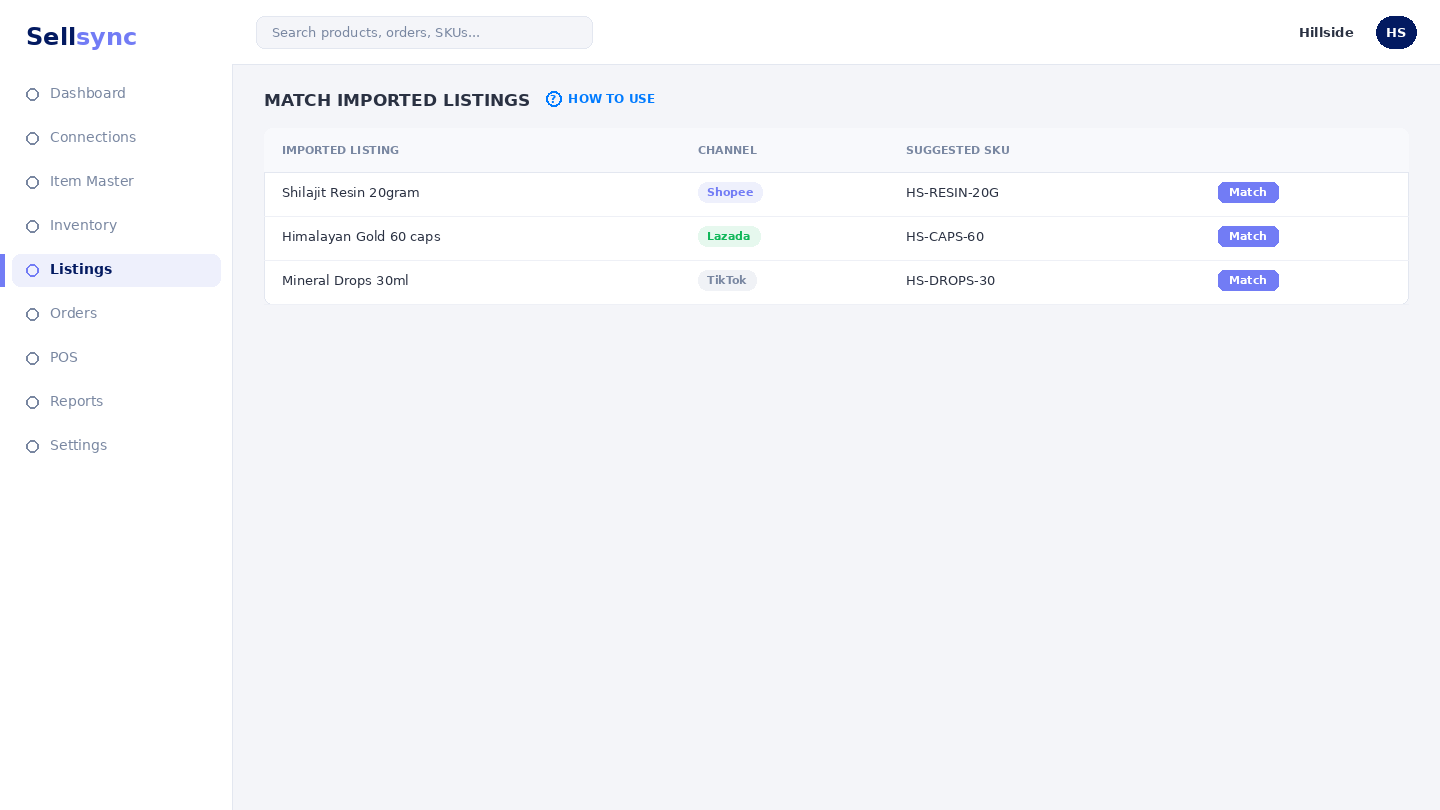
Steps
- 1Open E-Commerce Listings and choose Imported Listings.
- 2Use Import to pull the latest listings from a connected shop.
- 3Try Auto-Match to link the obvious matches automatically.
- 4For the rest, choose the master SKU each listing should point to.
- 5Confirm the match so stock and orders begin to sync.
Good to know
Filters help you focus on unmatched listings first. A listing can be delisted or relisted from here if you need to pause it.
Remember
Unmatched listings won't deduct stock — link each one to a SKU in the item master.
Was this article helpful?